Why Your 300 DPI Graphical Abstract Still Looks Blurry
A graphical abstract can carry a 300 DPI tag and still contain blurred labels or pixelated diagrams. Start with three questions: how many pixels are actually in the file, how large will it appear, and were any elements already blurry before export?
This guide uses an invented size requirement to show the checks. Use your exact journal's current instructions for the actual target; 300 DPI is not a universal requirement for every type of artwork.
1. Compare pixels with the final size
Pixels describe the raster image itself. Effective pixels per inch describe how densely those pixels are placed at a particular physical size. Journal guides and image tools often label this value DPI, although PPI describes the raster calculation more precisely.
Effective PPI = pixel dimension ÷ printed dimension in inches. Calculate width and height separately. For millimetres, first divide the length by 25.4.
Consider an image containing 1200 × 600 pixels:
| Intended size | Effective resolution | Meets an assumed 300 PPI target? |
|---|---|---|
| 4 × 2 inches | 300 × 300 PPI | Yes, for pixel count |
| 8 × 4 inches | 150 × 150 PPI | No |
| 2 × 1 inches | 600 × 600 PPI | Yes, for pixel count |
All three rows use exactly the same pixels. A stored 300 DPI tag does not make the 8-inch version contain the 2400 pixels it would need across its width at 300 PPI. Changing the tag alone can change a program's default print size; it does not add detail.
A pixel-count pass is only one check. Small labels, a blurry source image, or a different aspect ratio can still make the result unsuitable. See the journal size and DPI reference for how to find the applicable requirements.
2. Look for the weakest element
An adequately sized canvas can contain a low-resolution screenshot. Exporting that canvas as a larger TIFF does not reconstruct the screenshot's missing letters or fine lines.
The PLOS ONE figure guide illustrates this problem with a low-resolution graph inside a higher-resolution TIFF. Its advice concerns manuscript figures, not a universal graphical-abstract specification. The practical lesson is to inspect each placed image, as well as the overall canvas.
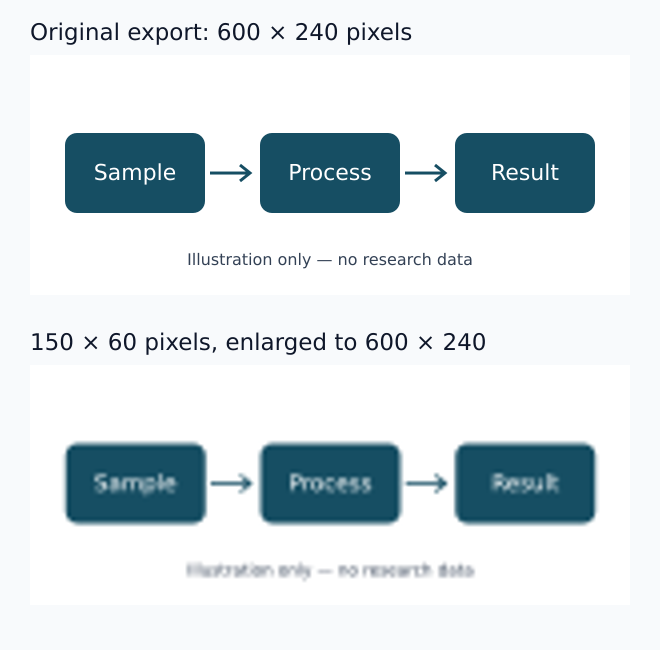
Original Abfig illustration, with no research data. The upper diagram was rendered at 600 × 240 pixels. The lower diagram was rendered at 150 × 60 pixels and enlarged to 600 × 240. This comparison demonstrates resampling; it is not a before-and-after improvement produced by the DPI checker.
Open your exported file and inspect its smallest labels and thinnest lines. Then view it at its intended physical size, using an application with a print-size view or a correctly scaled printout. Browser zoom alone does not reliably establish physical size on every screen.
3. Reproduce the numerical check
In the Abfig image dimensions and DPI checker:
- Select Custom size and DPI.
- For the example above, select inches and enter width 4, height 2, and target DPI 300. These are demonstration values, not a journal preset.
- Choose a 1200 × 600 pixel PNG or JPEG, then select Check File Properties. The effective-resolution result should be 300 × 300 DPI.
- Change the target to 8 × 4 inches and check again. The same file has 150 × 150 effective DPI, even if its embedded tag says 300.
- For your own file, replace these values with the confirmed journal requirement. Check any aspect-ratio warning before interpreting the result.
The custom check uses the full image at the entered width and height. It does not crop, rotate, resize, sharpen, or repair the image. It does not validate a custom file-format rule, color space, scientific content, or permission to use AI-generated imagery. A missing DPI tag also does not establish low quality: pixel dimensions and intended size still allow the effective-resolution calculation.
4. Choose the correction that matches the cause
| What you find | What to do next |
|---|---|
| Too few pixels for the required size | Re-export from the original editable figure at sufficient pixel dimensions. Do not merely change the DPI tag. |
| A blurry screenshot inside a large canvas | Replace that element with its original higher-quality export, then export the assembled figure again. |
| Enough pixels, but labels are unreadable at final size | Increase or simplify the labels in the editable source; check the actual output again. |
| Stretched shapes or an aspect-ratio warning | Recompose the layout to the required proportions. Do not stretch scientific structures to force a match. |
| A format problem | Use the journal's accepted format and inspect the converted file. TIFF and PNG serve different workflows; changing an extension is not a conversion. |
Upscaling may make edges look smoother, but it cannot establish the correctness of missing scientific detail. Return to the original data or editable illustration rather than inventing labels or structures to make an image look sharper.
5. Check the saved file, not only the export settings
Reopen the exact file you intend to submit. Compare its dimensions and resolution with the target, inspect its labels at final size, and verify file type and any other journal-specific requirements separately. If the journal has returned the file, start with the actual message and the technical correction checklist.
For AI-generated drafts, also follow the journal-policy checking workflow. A sharper image or a passing file check does not settle rights, scientific accuracy, AI-image permission, or editorial acceptance.
The PLOS source was checked on 1 November 2026. Recheck your target journal's current instructions before submission.
Check your file against the specifications
Use the DPI checker for dimensions, resolution, and format, then confirm the latest requirements in the target journal's official guidance.
Table of Contents
Author
Categories
Tags
More Posts

ACS TOC Graphic Guidelines: Check the Exact Journal
ACS TOC-graphic requirements vary by journal. Use ACS Catalysis as a current cited example, then verify the exact title and article type.
Graphical Abstract Size & DPI Requirements by Journal
Graphical-abstract size, resolution, color, and file rules are journal-specific. Compare cited examples, then verify the exact journal.
How to Make a Graphical Abstract in PowerPoint
Build a graphical abstract in PowerPoint, export an image, and verify its pixel dimensions and file type against the exact journal instructions.